
This post reflects confirmed behavior from the iOS 27 release.
Every September, Apple ships a new iOS and the political and nonprofit texting world holds its breath. iOS 26 reorganized how unknown sender inboxes work. iOS 27 changes something more visible: how media actually renders on screen.
Here is what changed and what to do about it.
iOS 27 affects how images, videos, and other files appear in the Messages app for contacts who have not saved your number.
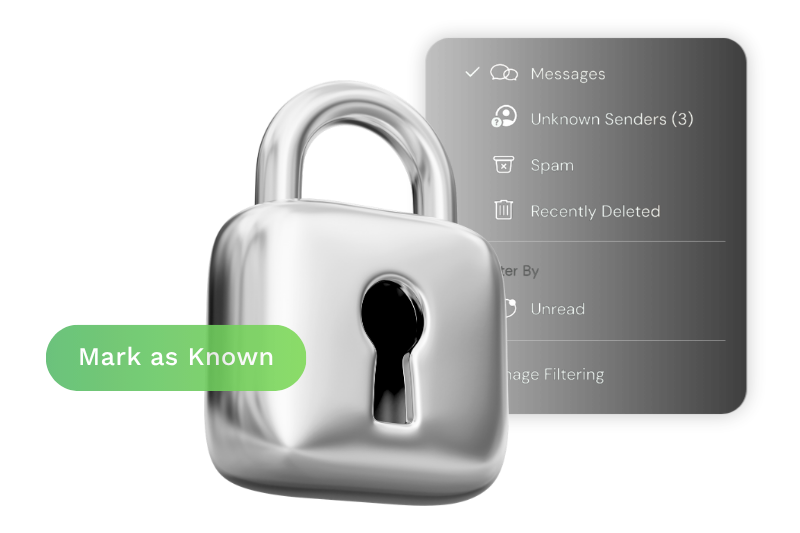
Images, Videos, vCards, and other attachments get blurred. A contact who hasn't saved you or replied to you will see your image obscured with a "This sender is not in your contact list" label. One tap reveals it. Delivery is unaffected. But you've lost the immediate first impression.
In Some Cases, attachments show up as “file chips”. Depending on the file, and whether or not the contact has sent an inbound message, the attachment will not render. In its place will be a “file chip” describing metadata about the file, such as the file name, extension, and its size.
The exemption: Neither change applies to contacts who have saved your number. Those contacts see everything exactly as they do today.
A contact treats your number as known if they've saved it in their contacts, or if they've ever sent you a reply. That includes a voting plan response, an RSVP, a question to a volunteer — any inbound message counts. Programs built around real two-way conversation are better positioned than programs using MMS primarily as a one-way send.
1. Send vCards early. A vCard delivers your organization's name, number, and logo as a one-tap save. Once a contact saves you, images and videos display normally for every future message. Send it in your first volunteer intro or welcome message — before your first media send.
2. Lead with SMS for cold contacts. For contacts who haven't replied yet, start with a plain text message. No image, no video. An SMS opener that invites a response costs nothing, and the moment they reply, they're a known sender for everything that follows.
3. Flip the sequence for image-heavy sends. Rather than opening with a visual for your full list, send a text first that references the image and invites a reply. The MMS follows after they've engaged. The image then lands with full rendering.
4. Build reply into your program before you send media. Voting plan questions, early voting check-ins, and volunteer conversations all count. Any reply may help move the contact into the known sender bucket.
5. Segment MMS sends by engagement history. Use Contact Query to filter for contacts who have sent at least one inbound message before sending video or image-heavy content. That cohort sees your media as intended. Everyone else gets the SMS-first approach.
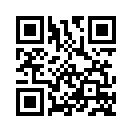
6. Organize your program so contacts are the ones reaching out to you initially. Put QR codes up that pre-fill a keyword message into your contacts handset to your texting channels.
Example:
Create “text me” buttons on your website.
Example: Go here on your mobile phone & Click Text Me 4 Texting Solutions button.
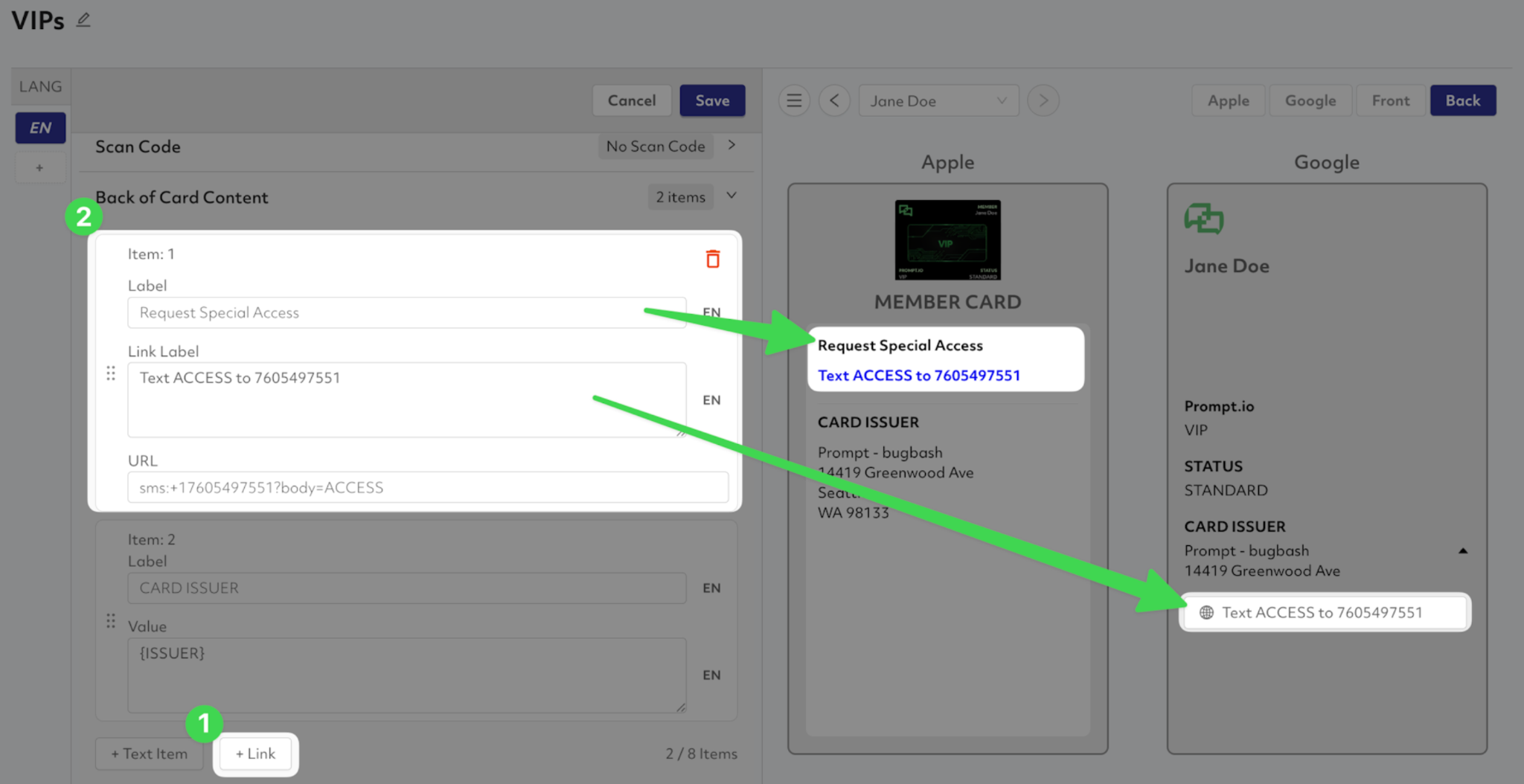
iOS 27 is a useful reminder that not everything has to live in the SMS inbox. Mobile Wallet Cards sit in Apple Wallet. Push notifications go directly to the lock screen. None of the iOS 27 rendering changes apply. For high-value supporters where persistent presence matters between campaigns, a card on their phone is worth considering alongside your texting program.
Our team has been testing iOS 27 since the developer beta in June and is ready to walk through your specific program before your next send.
Talk to the Prompt.io team